Productivity Toolkit for Chrome

Small tools.
Big productivity.

Snapbit helps you capture and reuse screen and page content. Take screenshots, annotate and blur images, record your screen, pick colors and convert text case, all from one Chrome extension.

Free. No ads. No premium plans. No account.

  • Screenshot Capture
  • Image Editor
  • Screen Recorder
  • Color Picker
  • Text Case Converter
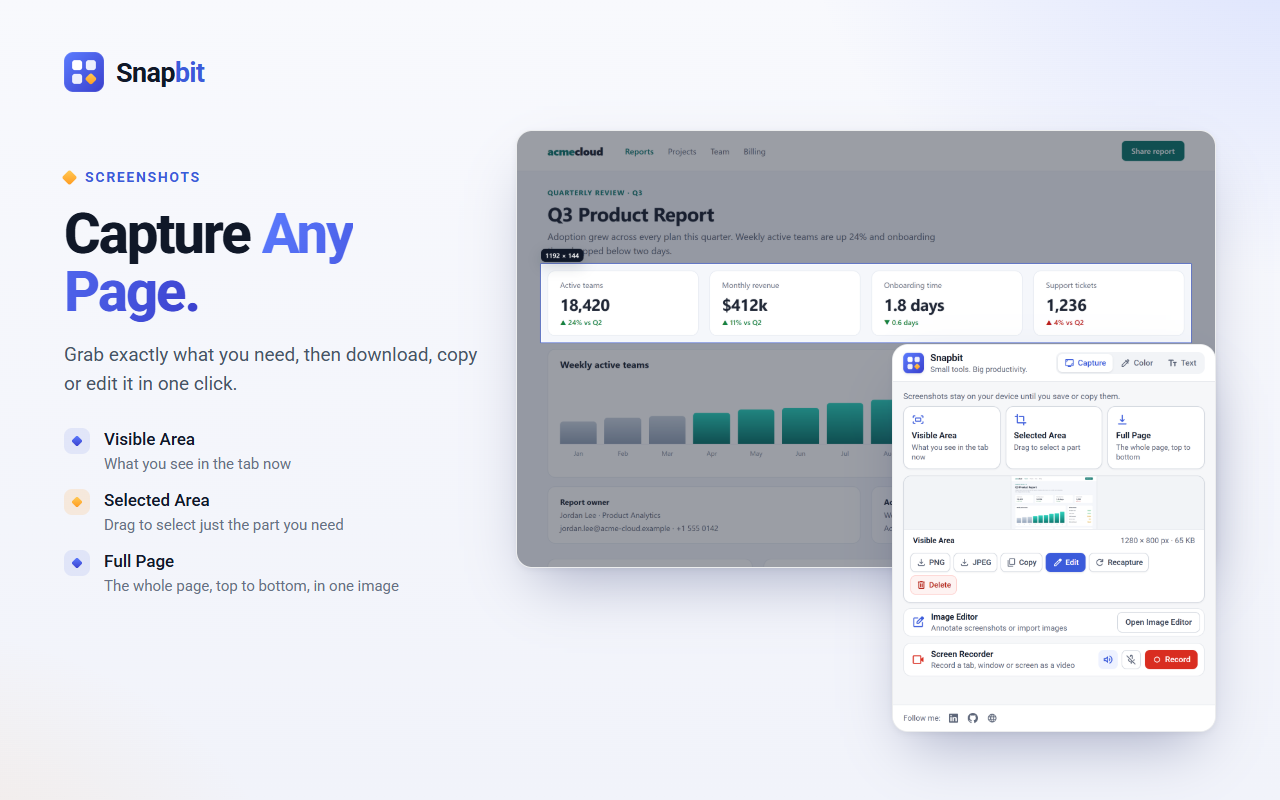
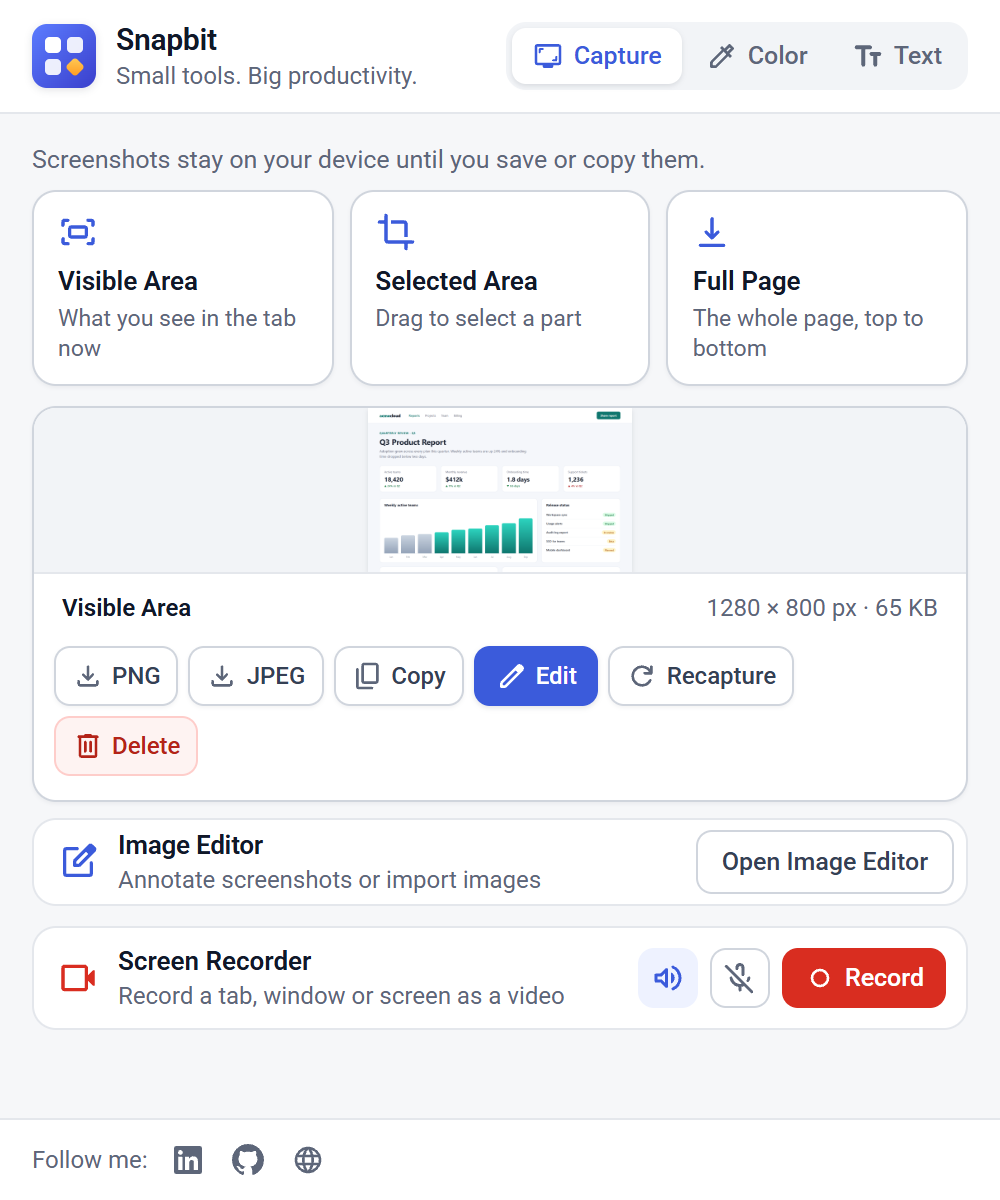
The Snapbit popup: Capture, Color and Text tools, the three screenshot modes, a captured page with PNG, JPEG, Copy and Edit actions, and the Screen Recorder

Five tools, one icon

Everything for the small jobs you do every day.

Click the Snapbit icon in your toolbar and choose Capture, Color or Text. Everything runs in your browser.

Screenshot Capture

Save exactly what you need from any regular web page and use it right away.

  • Visible Area – what you see in the tab, at your screen's real resolution.
  • Selected Area – drag a rectangle on the page; the size is shown as you drag.
  • Full Page – the page is scrolled and stitched into one image, with sticky headers shown once.
  • Download as PNG or JPEG, copy to the clipboard, or open it in the Image Editor.
Selected Area mode: a rectangle drawn over a dashboard page with its size shown, next to the Snapbit popup with the captured result

Image Editor

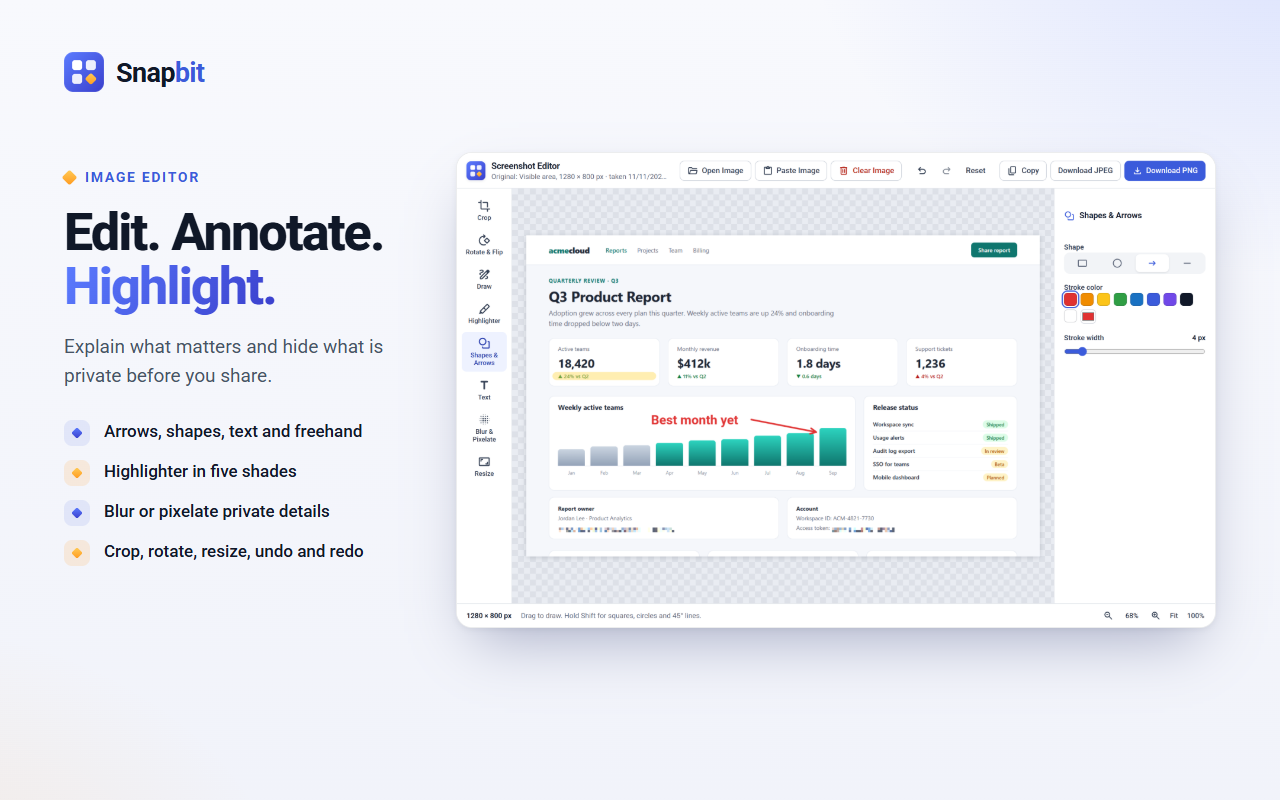
Explain what matters and hide what is private before you share.

  • Crop, rotate, flip and resize.
  • Draw freehand, add shapes, arrows and text labels.
  • Highlighter in five shades or a custom color.
  • Blur or pixelate private details; the effect is baked into the exported pixels.
  • Undo and redo, zoom and pan, keyboard shortcuts.
  • Open PNG, JPEG, WebP or GIF files, or paste an image with Ctrl+V.
Snapbit Image Editor with a highlighted figure, a red arrow and text label, and a pixelated email address

Screen Recorder

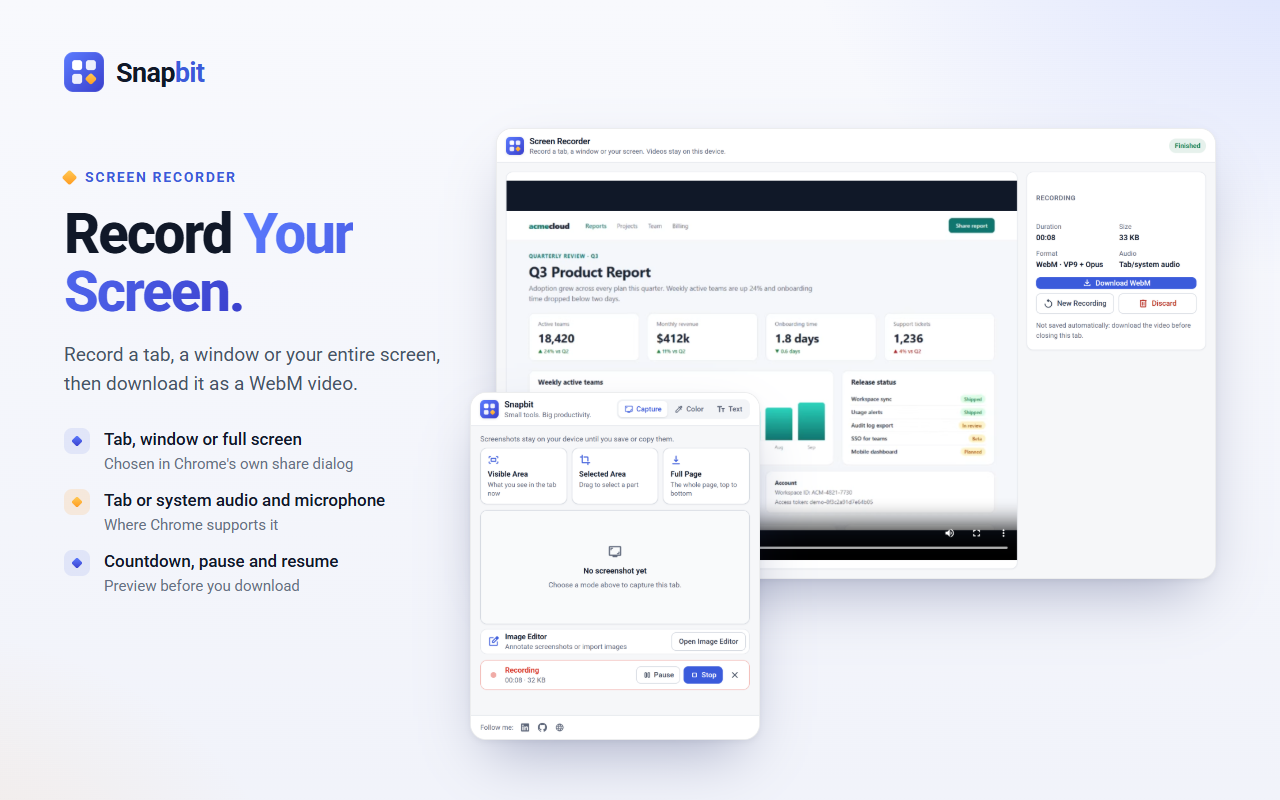
Record a tab, a window or your entire screen, then download it as a WebM video.

  • Choose the source in Chrome's own share dialog.
  • Tab audio, system audio where available (entire screen on Windows and ChromeOS) and your microphone.
  • 3-2-1 countdown, pause and resume; the countdown is not in the video.
  • Preview, then download as WebM (VP9 or VP8 with Opus audio).
Snapbit Screen Recorder preview with duration, size and format, next to the popup showing a recording in progress with Pause and Stop

Color Picker

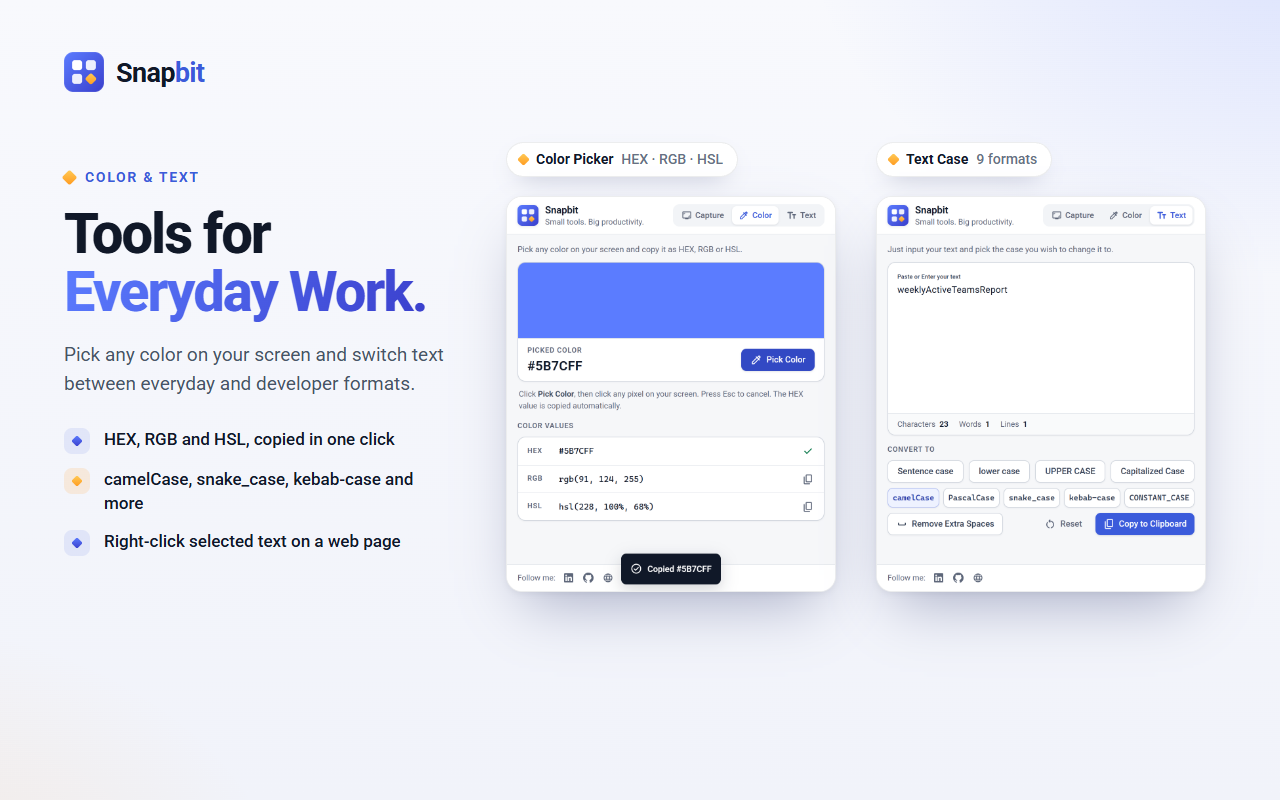
Grab any color on your screen with the browser's native eyedropper.

  • HEX, RGB and HSL values, each with its own copy button.
  • The HEX code is copied automatically.
  • Works on web pages, photos and other apps (Chrome 95 or later).
Snapbit Color Picker showing a picked color as HEX, RGB and HSL, next to the Text Case Converter

Text Case Converter

Switch text between everyday and developer formats in one click.

  • Sentence case, lower case, UPPER CASE and Capitalized Case.
  • camelCase, PascalCase, snake_case, kebab-case and CONSTANT_CASE.
  • Handles accented and non-Latin letters; removes extra spaces; live character, word and line counts.
  • Select text on a web page, right-click and choose "Convert case with Snapbit".
Snapbit Text Case Converter with text converted to camelCase and all nine case formats

Privacy first

Your content stays in your browser.

Snapbit processes everything locally. Read the full privacy policy.

No uploads

Screenshots, edits and recordings are not sent to any server.

No tracking

No analytics, no ads and no account.

Only when you ask

Snapbit gets temporary access to a page only after you click its icon or right-click menu item there.

Stored on your device

Editor copies expire after 24 hours; recordings stay in memory until you download them.

FAQ

Questions and answers

What is Snapbit?

Snapbit is a free Chrome extension that helps you capture and reuse screen and page content. It combines Screenshot Capture, an Image Editor, a Screen Recorder, a Color Picker and a Text Case Converter in one toolbar icon.

Is Snapbit free?

Yes. Snapbit is free, with no premium plan, no locked features, no watermarks, no ads and no account.

Can Snapbit capture a full web page?

Yes. Full Page mode scrolls the page and stitches it into one image. Captures stop at 30,000 pixels in height, and pages that scroll inside an inner panel cannot be stitched.

Can I blur or pixelate sensitive information?

Yes. The Image Editor's Blur & Pixelate tool hides passwords, emails and other details, and the effect is applied to the exported pixels.

Which image formats can the editor open?

PNG, JPEG, WebP and GIF (a GIF opens as its first frame), up to 100 MB and 60 megapixels. You can also paste an image with Ctrl+V.

Can I record a tab, a window or the whole screen?

Yes. Chrome's share dialog lets you choose a tab, a window or the entire screen. Tab audio is available for tabs, system audio for an entire screen on Windows and ChromeOS, and the microphone is optional.

What video format does the Screen Recorder use?

WebM (VP9 or VP8 video with Opus audio). There is no MP4 export.

Which text case formats are supported?

Sentence case, lower case, UPPER CASE, Capitalized Case, camelCase, PascalCase, snake_case, kebab-case and CONSTANT_CASE.

Does Snapbit upload my screenshots or recordings?

No. Screenshots, edited images and recordings are processed in your browser. Snapbit has no analytics, tracking or advertising code.

Where are screenshots and editor images stored?

Locally, in the extension's own storage in your Chrome profile. Editor copies expire after 24 hours and Clear Image deletes one immediately. Recordings stay in memory until you download them.

Are there pages Snapbit cannot work on?

Yes. Extensions cannot run on built-in Chrome pages or the Chrome Web Store, so some tools are limited there.

Was Snapbit called something else before?

Yes. Snapbit was previously called Convert 2 Case, and its text case converter is still included.

Get Snapbit for Chrome

Five small tools behind one icon. Free, with no ads and no account.